Free cookie consent management tool by TermsFeed Generator
Getting started

Creating an account

Sign up with Google, verify your number, and complete a short setup submit, and your application enters review. Once approved, you unlock onboarding, assessments, opportunities, and your dashboard.

Why it matters

Access is reviewed, not automatic enter your legal name exactly as it appears on your government ID, since that's what our team evaluates for eligibility and what keeps identity and payment setup seamless later.
How to do it

1

Sign up with Google

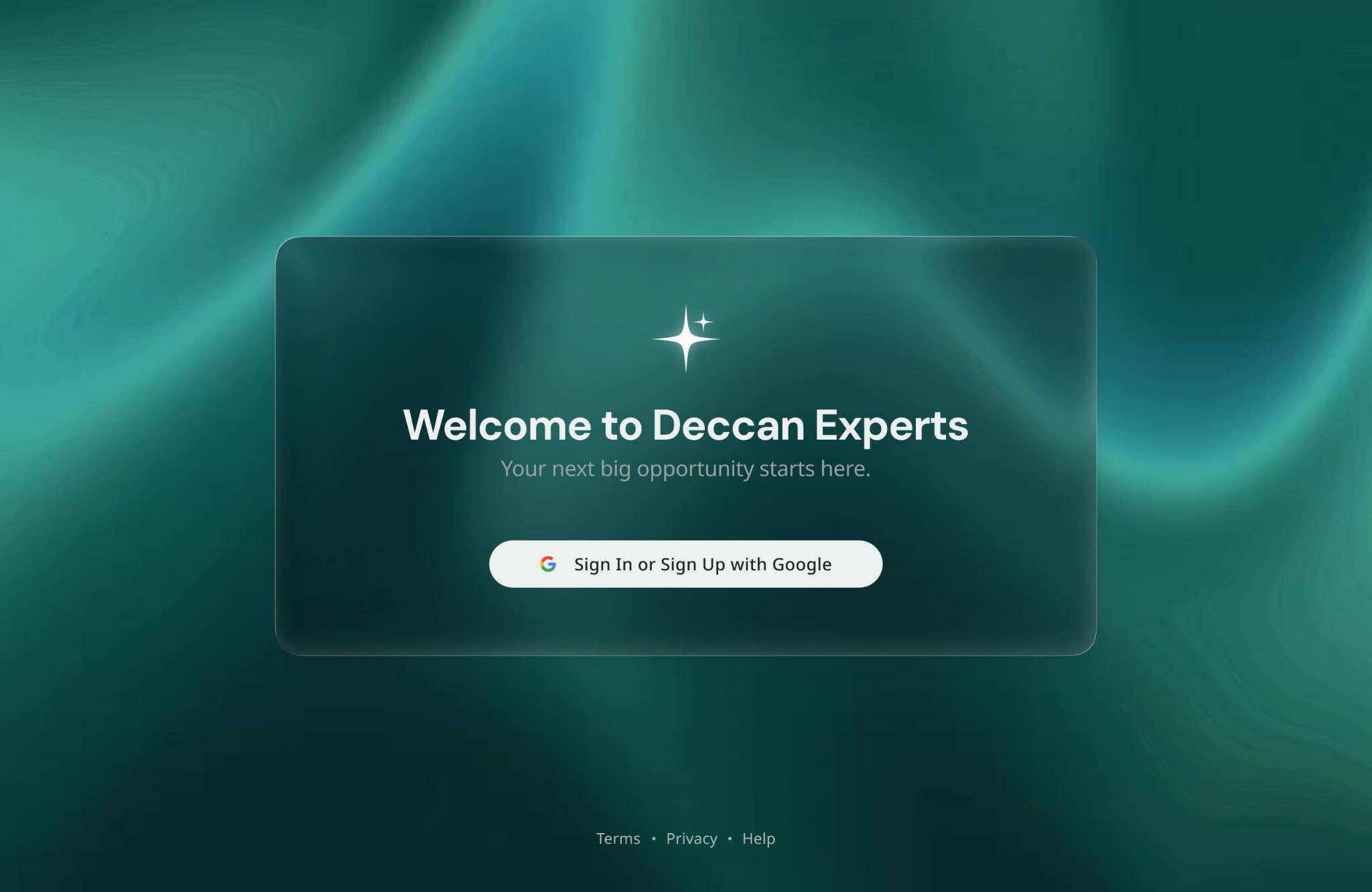
Visit deccanexperts.ai and select Continue with Google. Your email is verified and you move to mobile verification.

2

Verify your mobile number

Enter it and confirm with the 4-digit code sent to your device. Not required for international users we only capture the number.

3

Complete account setup

Upload your resume and add your professional details, including your full legal name and weekly availability. Enter your name exactly as it appears on your government ID it's used for identity verification later.

4

Submit your application

Your account is created and enters review.

5

Wait on the In Review page

Our team evaluates your application; some features stay locked until you're notified of your status.

Enter your full legal name exactly as it appears on your government ID used for identity verification and payouts; a mismatch can delay both. You'll also provide your PAN during onboarding; it can't be changed after submission.

FAQs

I didn't receive my verification code. +

Check the number you entered and your signal, then request a new code. Still stuck? Contact support with your support ID.

An account already exists with my mobile number. What should I do? +

Sign in to the existing account, or continue with a different Google account, though we recommend keeping one account so your profile and activity stay in one place.

Can I edit my application after submitting? +

You may be prompted to update information, or contact support with your support ID for assistance.

What's next

Update your profile for better matching.
Complete Work Authorisation ID, bank details, tax form.
Getting started

Updating your profile & KYC verification

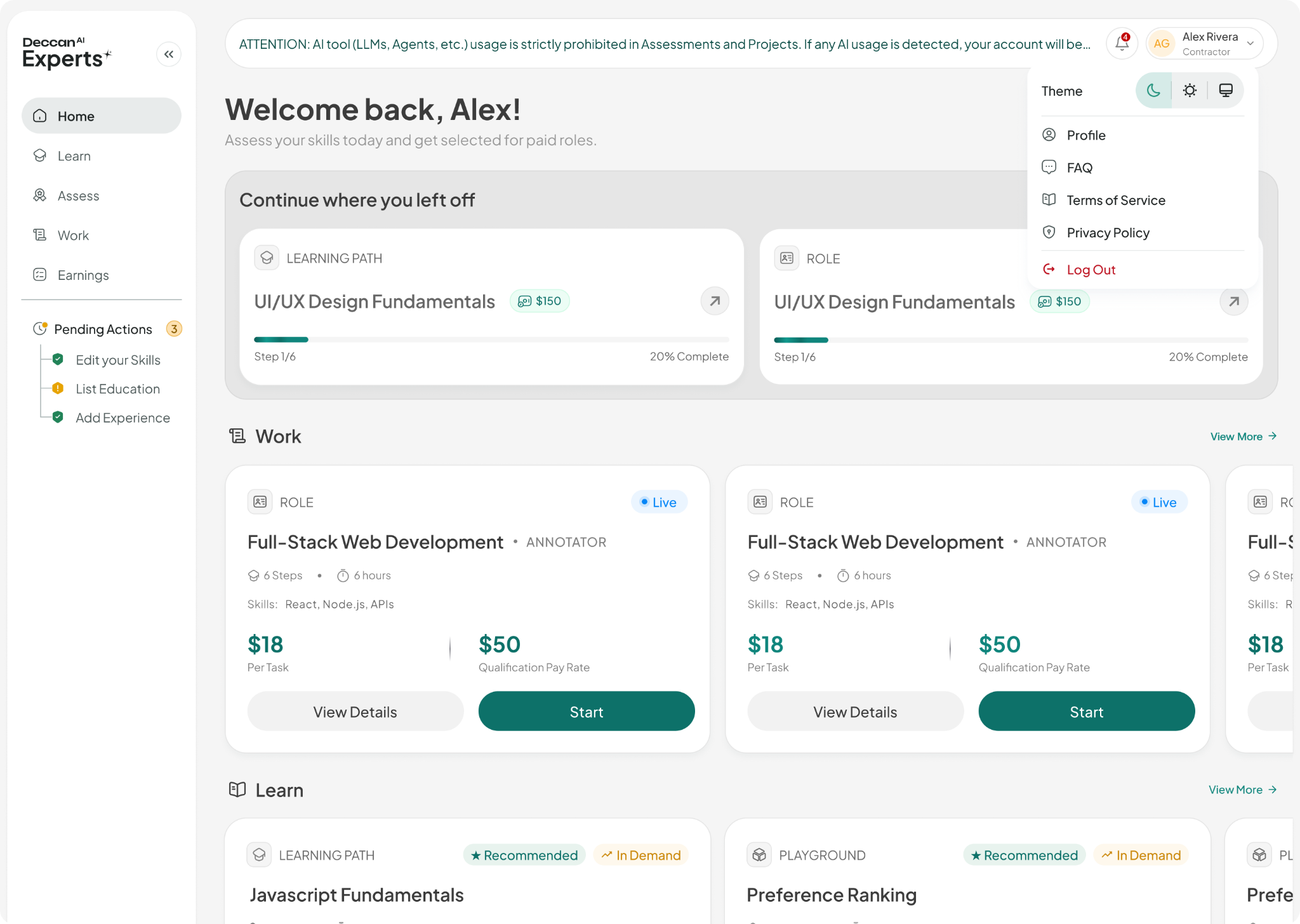
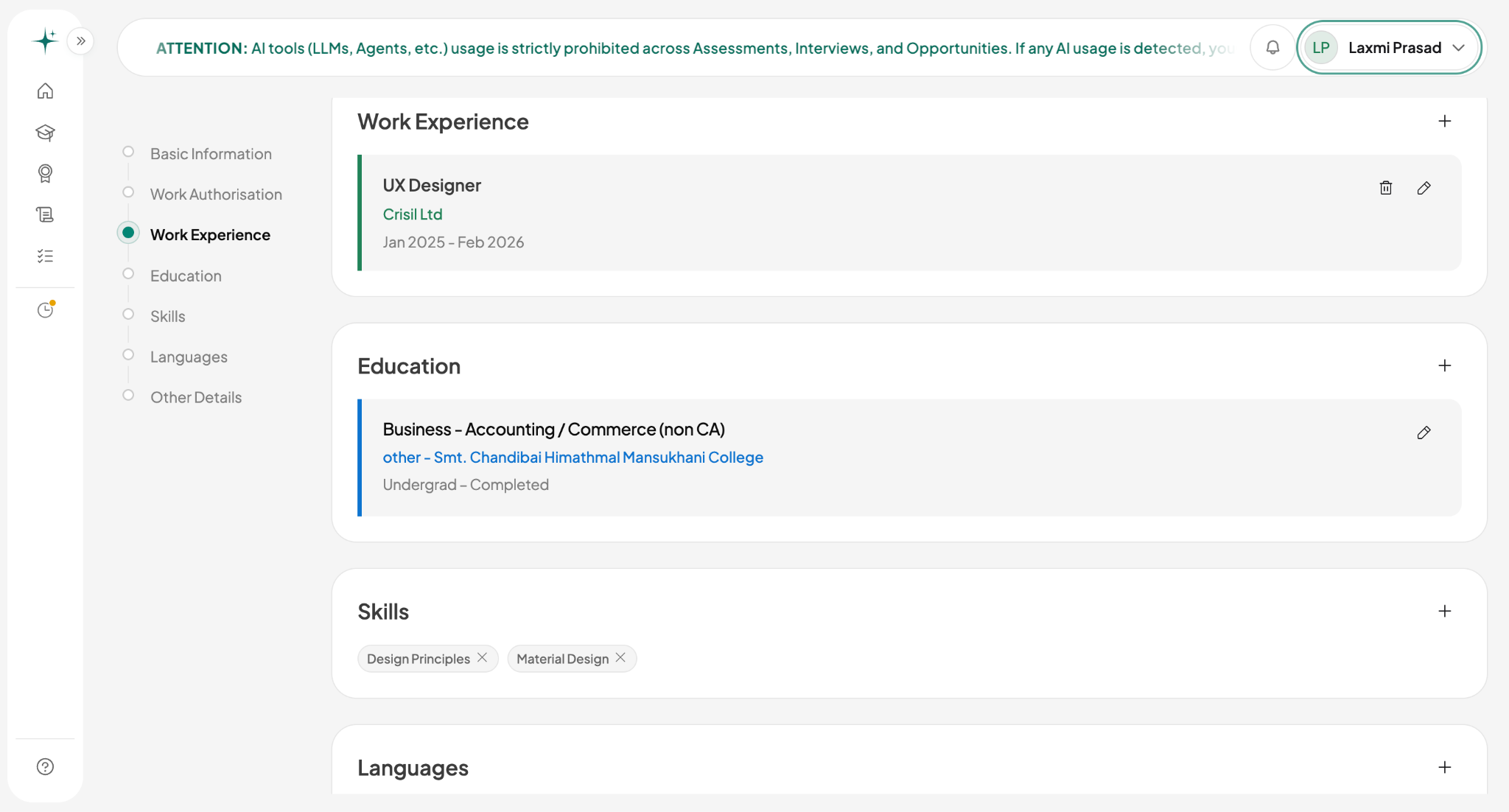
Your profile is your identity on Deccan Experts basic info, Work Authorisation status, and your professional story (experience, education, skills, languages, and links). Anything still outstanding shows under Pending Actions in the sidebar, on every page.

Why it matters

Matching runs on your profile incomplete or outdated profiles are invisible to roles you'd otherwise qualify for. Once your identity and bank information are confirmed, further edits are restricted for account security.
How to do it

1

Open your profile

Select Profile from the navigation to see your sections and Work Authorisation progress.

2

Clear your Pending Actions

Each item in the sidebar links to where you complete it.

3

Complete your professional sections

Work experience, education, skills, languages be specific. "Senior backend engineer, 7 years in distributed systems" outperforms "software developer."

4

Add your links under Other Details

LinkedIn, portfolio, GitHub they help reviewers validate your background faster.

5

Keep it current

Update whenever something material changes a new skill, role, or credential.

Good to know

Your profile name must match your government ID it's used for identity verification, and contracts and payouts go to your legal name. Minor errors (spelling, formatting) are self-service via Edit in Basic Information; significant name changes or PAN corrections require contacting support with your support ID.

FAQs

Does updating my profile affect active projects? +

No changes apply to future matching only; active engagements continue under their existing terms.

Who sees my profile? +

Project teams see your professional information, relevant assessment outcomes, and verification status. Identity documents and payment details are never visible to them.

What's next

Complete Work Authorisation ID verification, bank details, tax form.
Take assessments to turn your profile into qualifications.
Getting started

Setting up payment

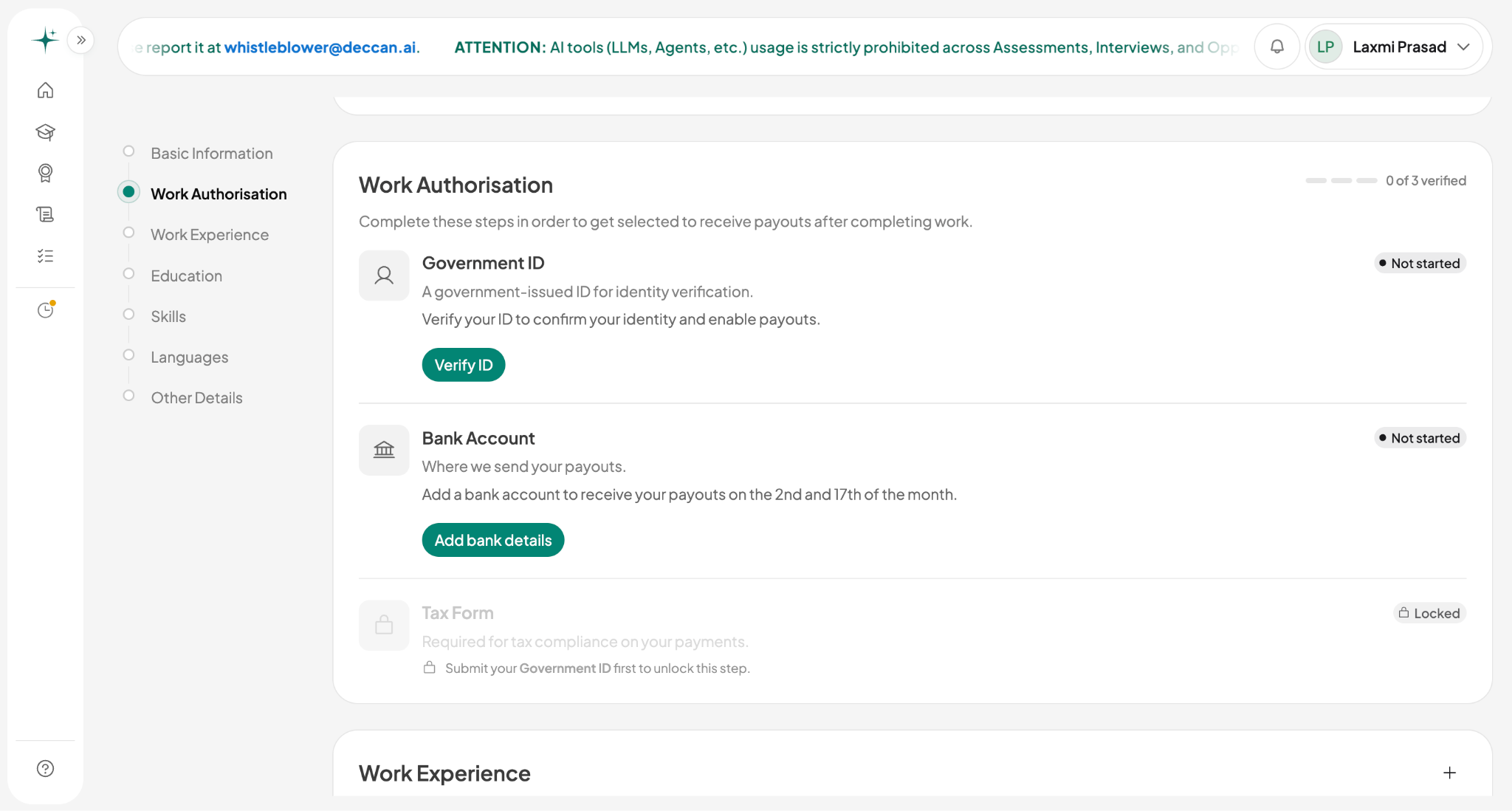
Adding your bank details is part of Work Authorisation the section of your profile you complete to get paid. It has three steps: Government ID, Bank Account, and Tax Form. ID and Bank Account are both open from the start, in whichever order suits you; Tax Form unlocks once your Government ID is submitted.

Why it matters

No payouts without it payouts only process once Work Authorisation is complete. Your bank account must be in your own legal name, matching your ID and profile; mismatches are the most common cause of payment delays. It's a one-time setup once complete, payouts flow automatically on the platform's payout dates.
How to do it

1

Open Work Authorisation

Go to Profile → Work Authorisation to see all three steps and your progress.

2

Verify your Government ID

Complete this step in whichever order you prefer relative to bank details it unlocks the Tax Form step.

3

Add your bank details

Select Add Bank Details and fill in the form for your region India: account number + IFSC code. United States: account number + ABA routing number. Everywhere else: account number + SWIFT code.

4

Submit your Tax Form

Required for tax compliance on your payments United States: W9 Form. Everywhere else: W8 BEN Form. Once submitted, your Work Authorisation status updates to fully verified.

FAQs

Can I change my bank details later? +

No once ID and bank details are submitted, contact support with your support ID for changes.

The name on my bank account differs slightly from my ID. Is that a problem? +

It can be payouts are matched against your verified identity. Use your name exactly as your bank records it, and keep your profile name matching your government ID. If flagged, correct your profile name or contact support with your support ID.

Why is the Tax Form locked? +

It stays restricted until your Government ID and Bank Details are processed prioritise ID verification to proceed.

Earnings & growth

Earnings payments & activity logs

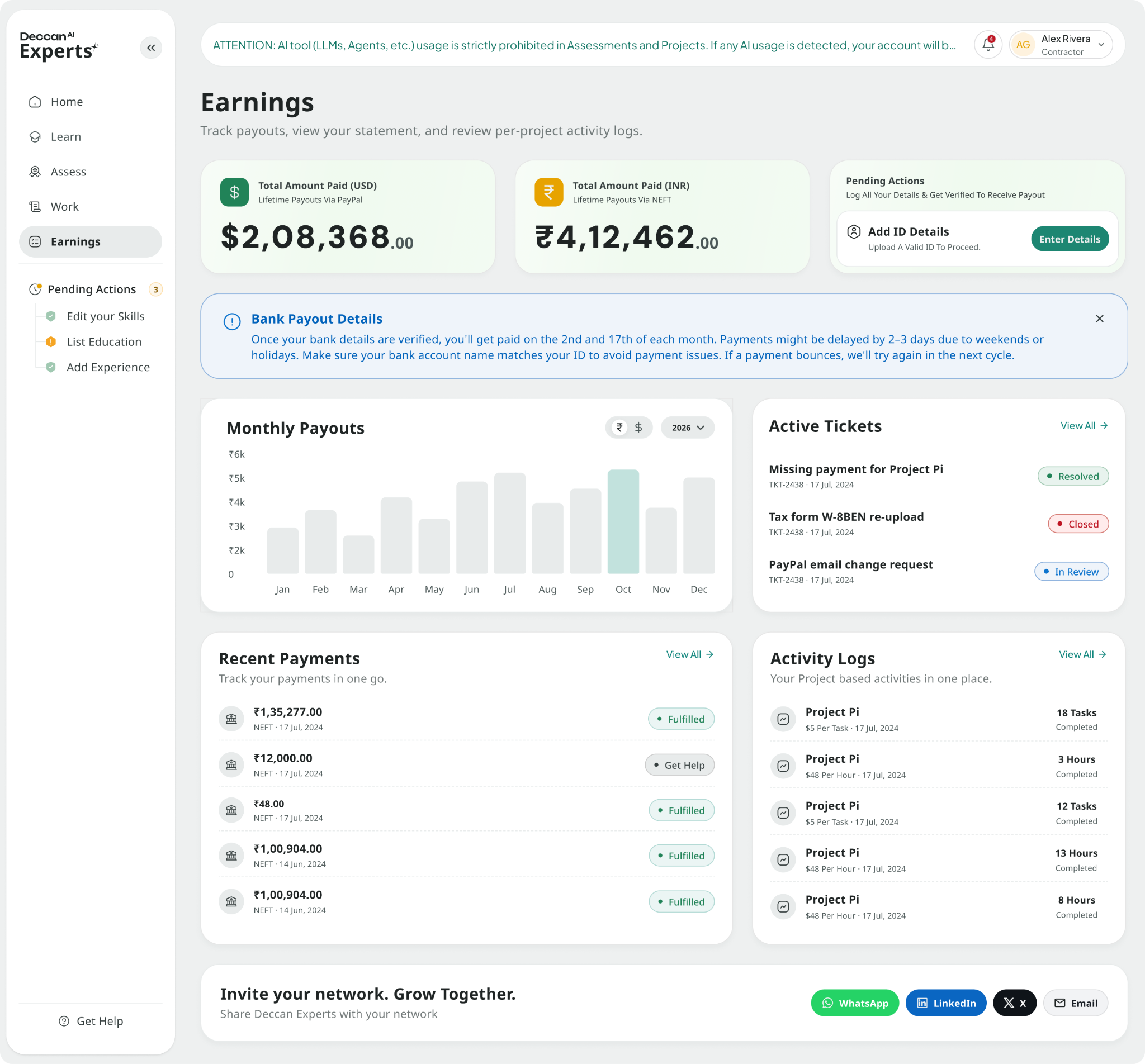
The Earnings page is your financial record what you've earned, the status of each payment, and your payout history, backed by activity logs (the line-item record behind every amount). Referral rewards appear here too. Payouts process on the 2nd and 17th of each month, to your verified bank NEFT or PayPal account.

Why it matters

It's the source of truth for your money every task, adjustment, referral reward, and payout is recorded here. Statuses tell you where a payment stands, and your activity logs are your evidence if anything needs resolving check them regularly, especially in your first weeks on a project.
How to do it

1

Open Earnings

Select Earnings from the sidebar to see your overview and payment history.

2

Review the Overview

See your total paid in USD PayPal and INR NEFT, your verified payout account, and your last 12 months of payouts.

3

Check your Payments

Each shows date, method, amount, and status Fulfilled or Get Help. Filter by status to find what you need.

4

Check your Activity Logs

Switch between Deccan Experts Platform and Other Platform & Referral earnings to see the work behind each amount per-project line items, tasks, pay per task, and gross earning.

5

Raise anything that looks wrong

Use Get Help on that payment (or raise a ticket) with the specific entry details.

Good to know

Payouts only process once Work Authorisation (ID, bank details, tax form) is verified keep your bank details current, and raise discrepancies promptly, referencing the specific entry (project, date, amount).

FAQs
Why is the amount different from what I expected? +

Open your Activity Logs they show the tasks, pay per task, and gross earning behind the amount. If the record looks wrong, raise it via Get Help on that payment.

A payout didn't arrive. What should I check? +

Confirm your bank details in Work Authorisation are correct, then check the payment's status on Earnings. Still missing after a few business days? Contact support with your support ID and the payment reference.

Do referral earnings show here too? +

Yes referral rewards appear in your Earnings alongside project payments, on the same payout schedule. Your full referral breakdown lives on the Refer page.

Can project teams see my earnings? +

Teams see the work records for their own project. Your balances, payout details, and payment history are visible only to you.

Earnings & growth

Referral program

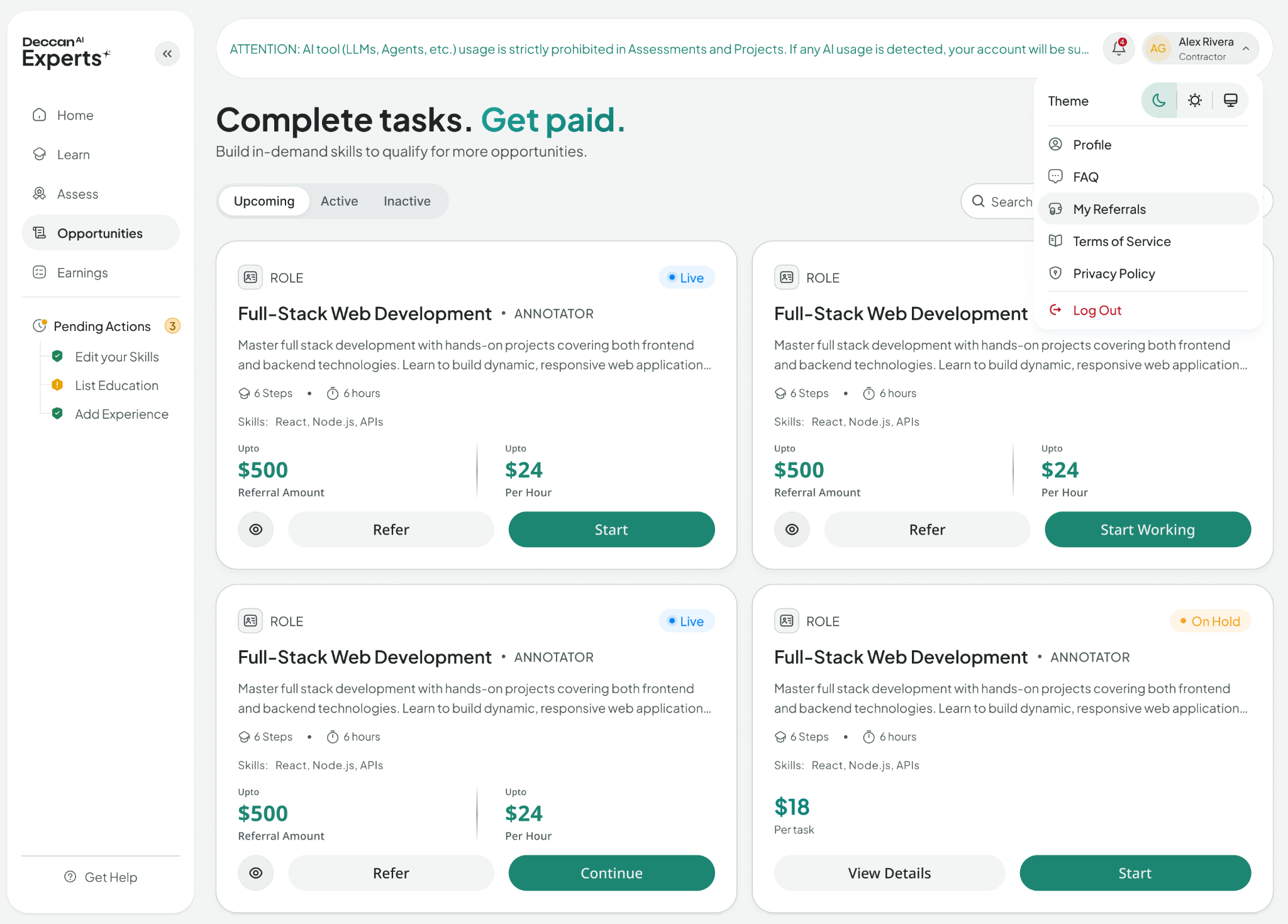
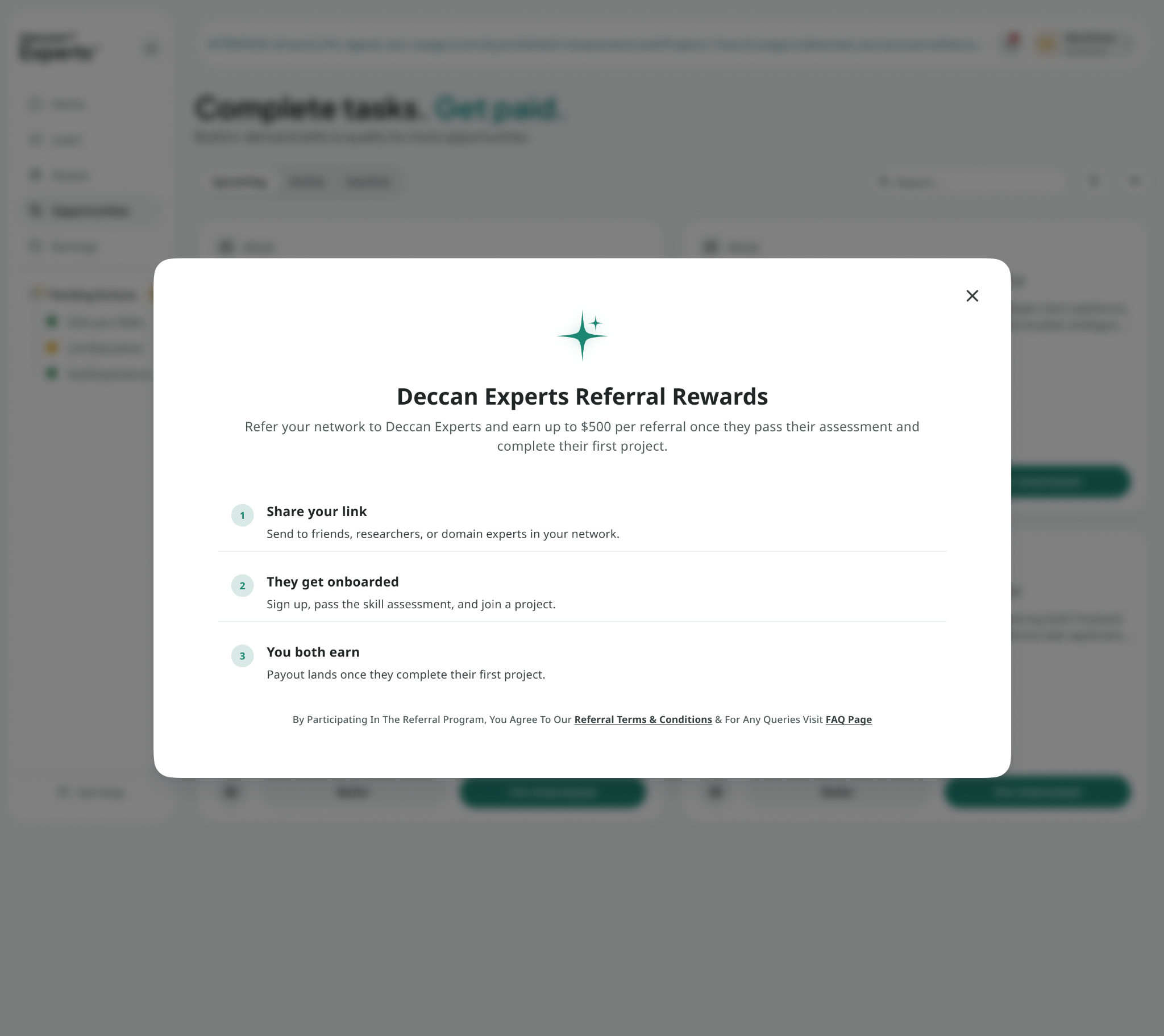
Refer experts you know for open roles and earn when they succeed. The Opportunities page has three tabs: Upcoming (roles open for referral), and Active / Inactive (all your roles and activity). Referrals are role-based each open role has its own reward and its own shareable link. You earn once the person you referred completes their first project.
Why it matters

It pays for fit, not clicks you earn when a referral completes their first project, so referring people genuinely suited to the role is what pays off. Referral rewards appear in your Earnings alongside project payments, on the same schedule.
i

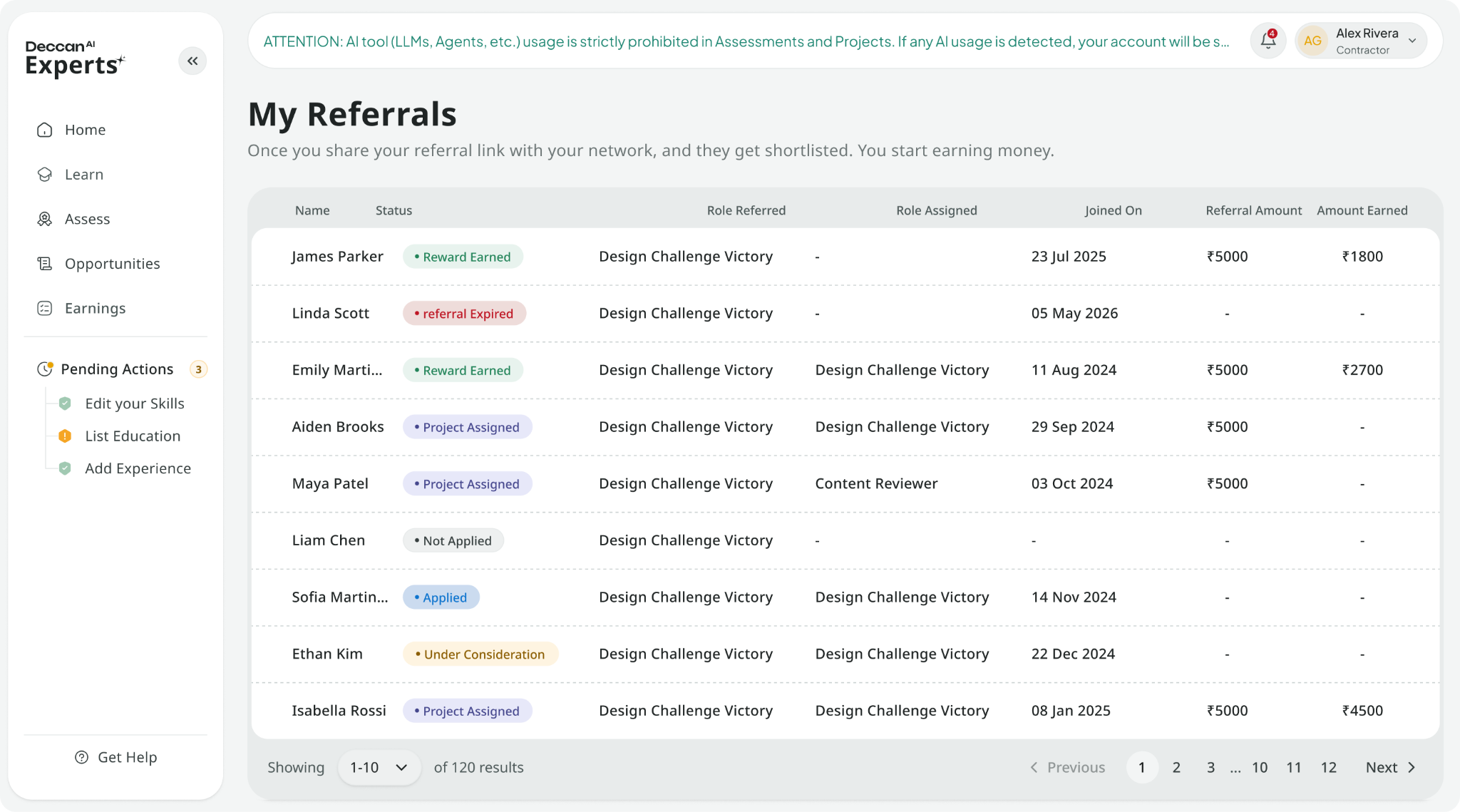
The referral pipeline: Applied → Not Applied → Under Consideration → Project Assigned → Reward Earned → Referral Expired. Track each person's stage in My Referrals. A referral closes if its 6-month window lapses without the person becoming active.

How to do it

1

Open the Upcoming page and see referral details

Each role shows the reward you earn, what the referred expert earns per task, the required skills, and direct social sharing options.

2

Pick a role and share your link

Select Refer to open the share sheet, then send your personal link via WhatsApp, LinkedIn, Telegram, email, or copy it directly. Anyone who signs up through that link is attributed to you.

3

Point them at the right work

The biggest driver of successful referrals is fit refer people for roles that match their actual expertise.

4

Track their progress

In My Referrals, each person shows their stage from Applied through Reward Earned.

5

Earn when they complete their first project

With an active referral campaign, the reward moves to Reward Earned, appears in your Earnings, and pays out on the standard schedule.

Good to know

An active account in good standing is required to participate, and referrals must sign up through your role link attribution is set at account creation and can't be added afterward. Genuine referrals only self-referrals, duplicate accounts, and incentivised sign-ups with no intention to work forfeit rewards. Each role has a referral cap and a 6-month time window; current reward, cap, and remaining slots are always shown on the role.

FAQs
Why is my referral reward amount different from what I expected? +

Rewards are tied to the specific role linked to your referral. If your referral signed up for one role but completed their first project in a different one, your reward adjusts to match the role they actually completed.

My friend signed up without my link. Can they be attributed to me? +

No attribution is fixed when they create their account. Always share the role link itself, before they sign up.

Can I refer someone who already has an account? +

No the program rewards bringing new experts to the platform.

What's next
Share role links with two or three people whose expertise genuinely fits the open opportunities.
Watch your Earnings referral rewards land there as referrals complete their first project.
Support

Getting help & raising tickets

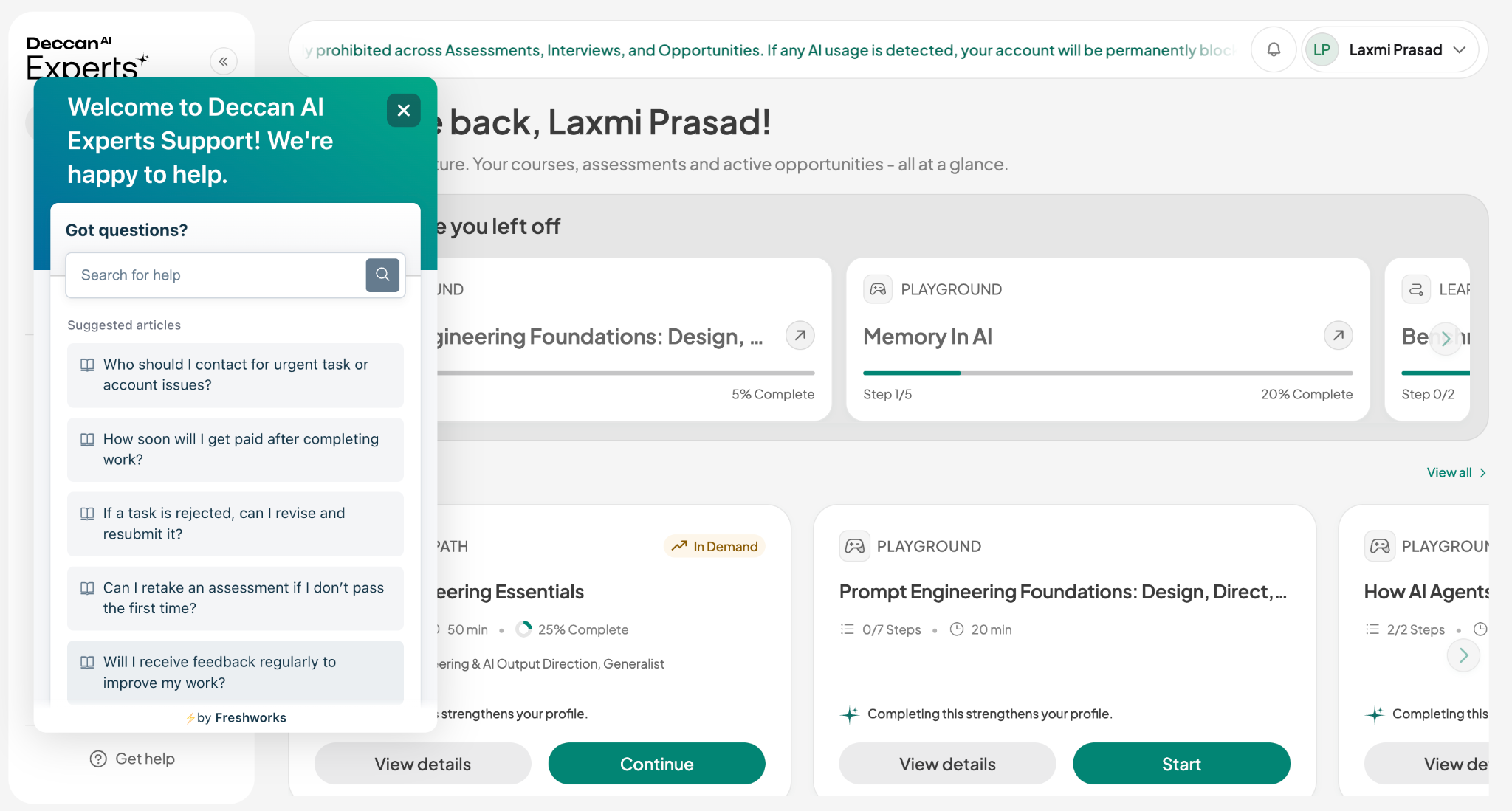
Support is available from every page select Get Help in the sidebar. Every request you've raised lives in one place, filterable by status, with a Questions and Contact Us button to raise a new one. For the fastest resolution: raise a ticket for anything account-specific verification, payments, bank details, tax forms, or a technical issue and keep each ticket to a single issue.

Why it matters

Specific tickets get fast answers, and the right channel matters questions about a specific project's tasks belong with that project's team; account, verification, and payment issues belong in support tickets.
How to do it

1

Open Get Help

Select it from the sidebar to see your queries, raise a concern by category, and add a screenshot with a detailed description.

Good to know

One issue per ticket, with specifics: what, where, when, and the right category. Stay in official channels Deccan Experts support will never ask for your verification codes or full bank credentials and don't open duplicates; if a ticket is taking longer than expected, follow up within it.

Watch for impersonation. Legitimate support communicates through the platform and never asks for verification codes or bank credentials report suspicious contact by raising a ticket.