

Creating an account
Sign up with Google, verify your number, and complete a short setup submit, and your application enters review. Once approved, you unlock onboarding, assessments, opportunities, and your dashboard.
Why it matters
Access is reviewed, not automatic enter your legal name exactly as it appears on your government ID, since that's what our team evaluates for eligibility and what keeps identity and payment setup seamless later.

FAQs
What's next
Updating your profile & KYC verification
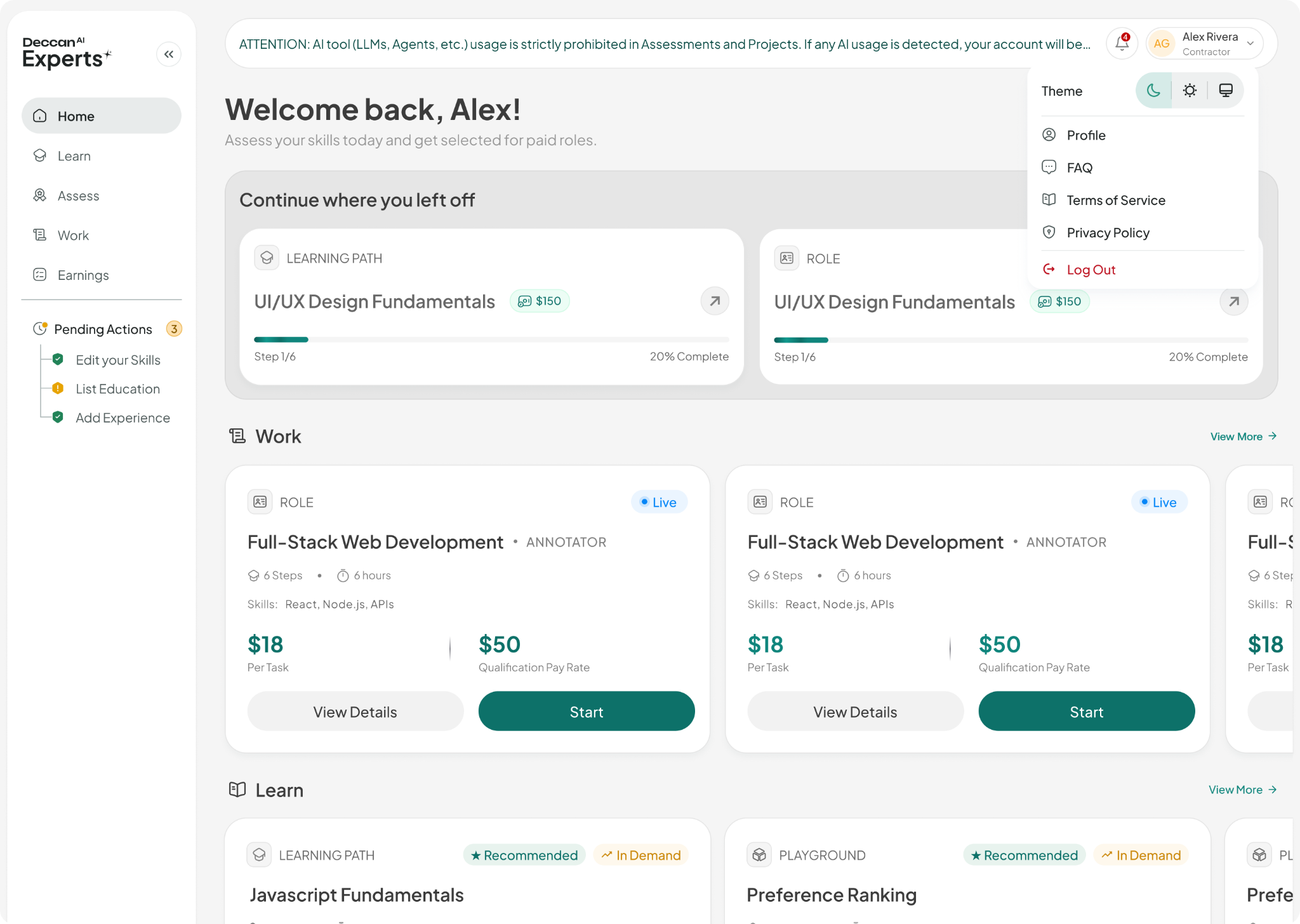
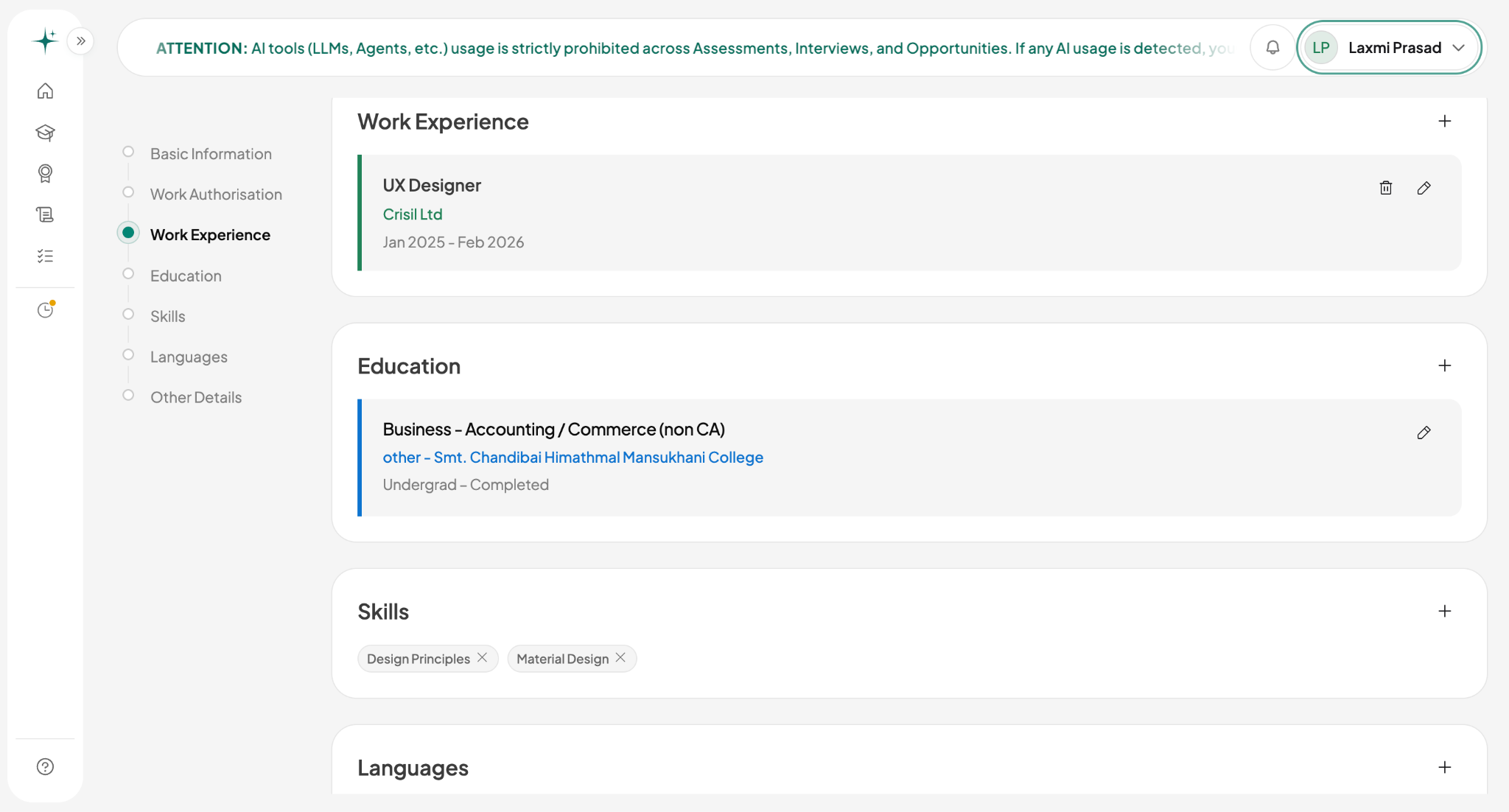
Your profile is your identity on Deccan Experts basic info, Work Authorisation status, and your professional story (experience, education, skills, languages, and links). Anything still outstanding shows under Pending Actions in the sidebar, on every page.
Why it matters
Matching runs on your profile incomplete or outdated profiles are invisible to roles you'd otherwise qualify for. Once your identity and bank information are confirmed, further edits are restricted for account security.
Good to know
Your profile name must match your government ID it's used for identity verification, and contracts and payouts go to your legal name. Minor errors (spelling, formatting) are self-service via Edit in Basic Information; significant name changes or PAN corrections require contacting support with your support ID.
FAQs
What's next
Setting up payment
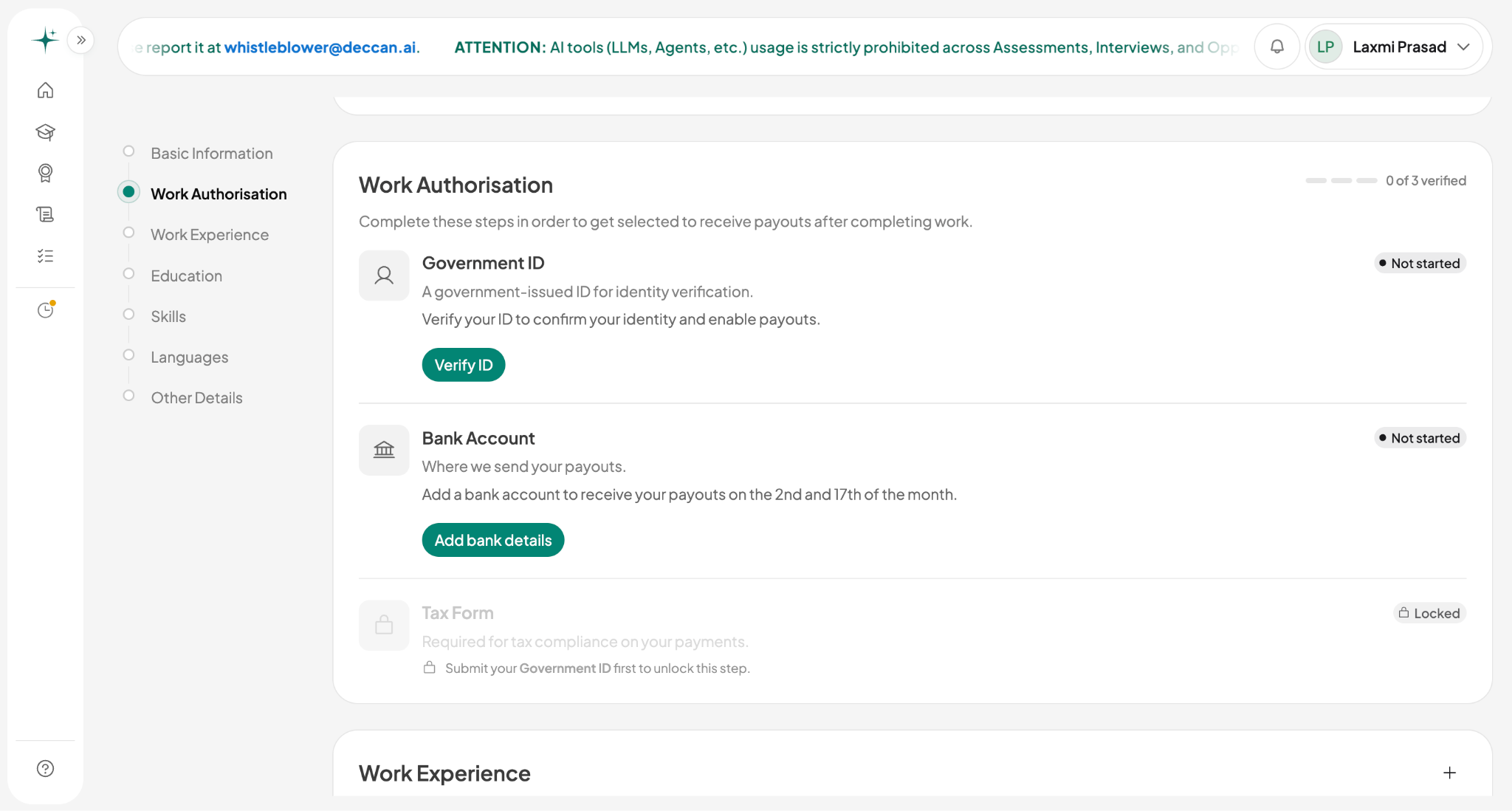
Adding your bank details is part of Work Authorisation the section of your profile you complete to get paid. It has three steps: Government ID, Bank Account, and Tax Form. ID and Bank Account are both open from the start, in whichever order suits you; Tax Form unlocks once your Government ID is submitted.
Why it matters
No payouts without it payouts only process once Work Authorisation is complete. Your bank account must be in your own legal name, matching your ID and profile; mismatches are the most common cause of payment delays. It's a one-time setup once complete, payouts flow automatically on the platform's payout dates.
FAQs
Earnings payments & activity logs
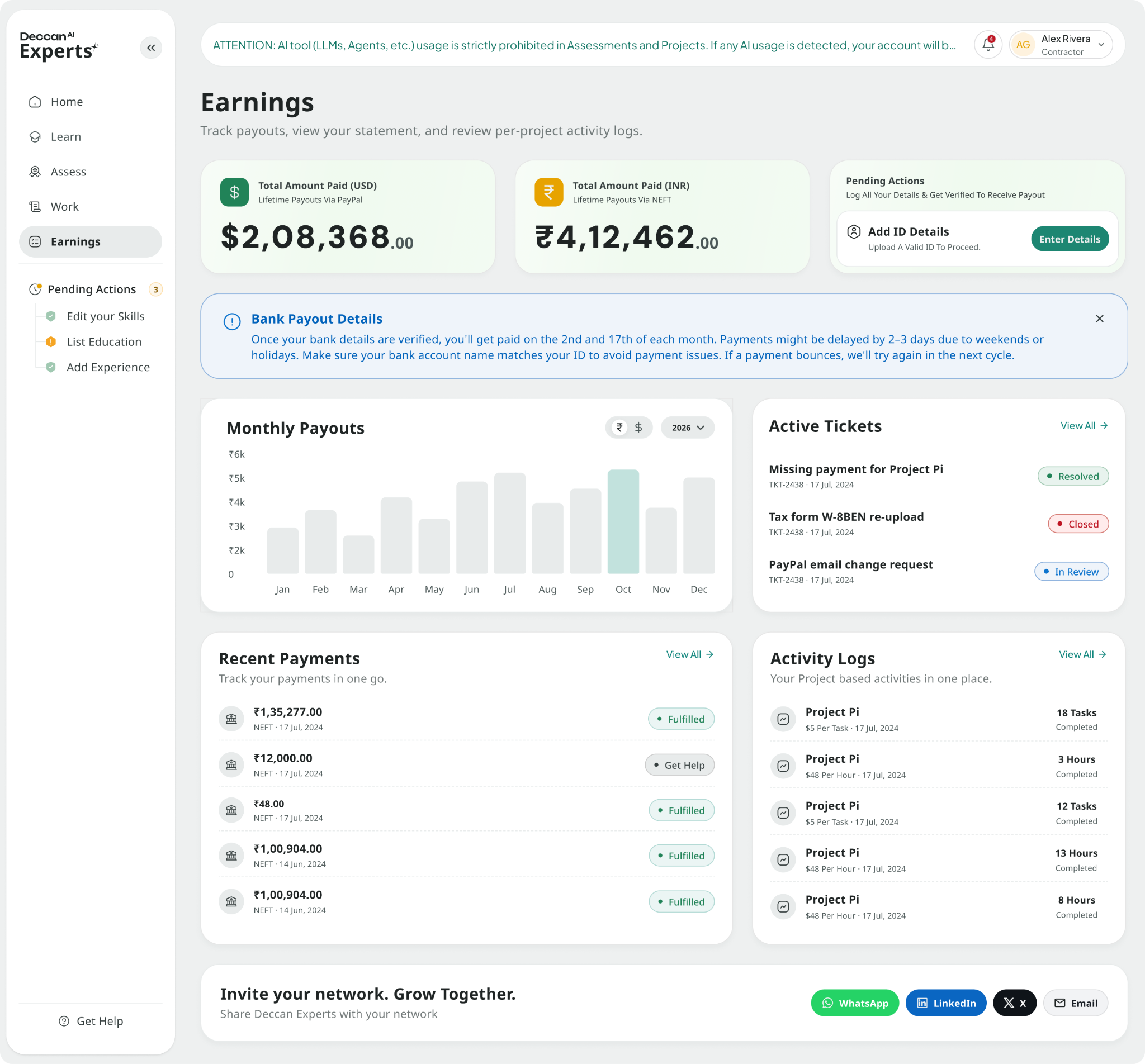
The Earnings page is your financial record what you've earned, the status of each payment, and your payout history, backed by activity logs (the line-item record behind every amount). Referral rewards appear here too. Payouts process on the 2nd and 17th of each month, to your verified bank NEFT or PayPal account.
Why it matters
It's the source of truth for your money every task, adjustment, referral reward, and payout is recorded here. Statuses tell you where a payment stands, and your activity logs are your evidence if anything needs resolving check them regularly, especially in your first weeks on a project.
Good to know
Payouts only process once Work Authorisation (ID, bank details, tax form) is verified keep your bank details current, and raise discrepancies promptly, referencing the specific entry (project, date, amount).
Referral program
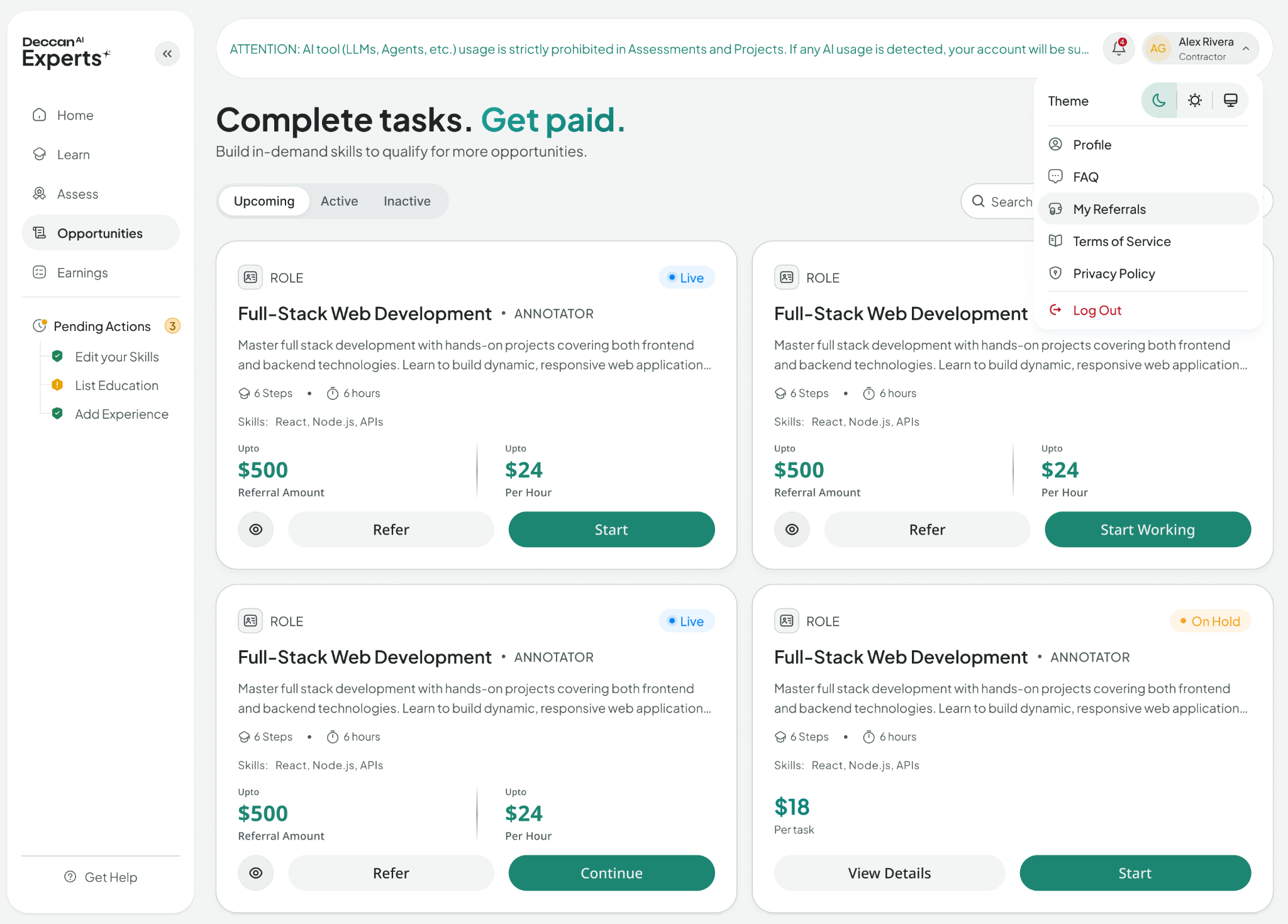
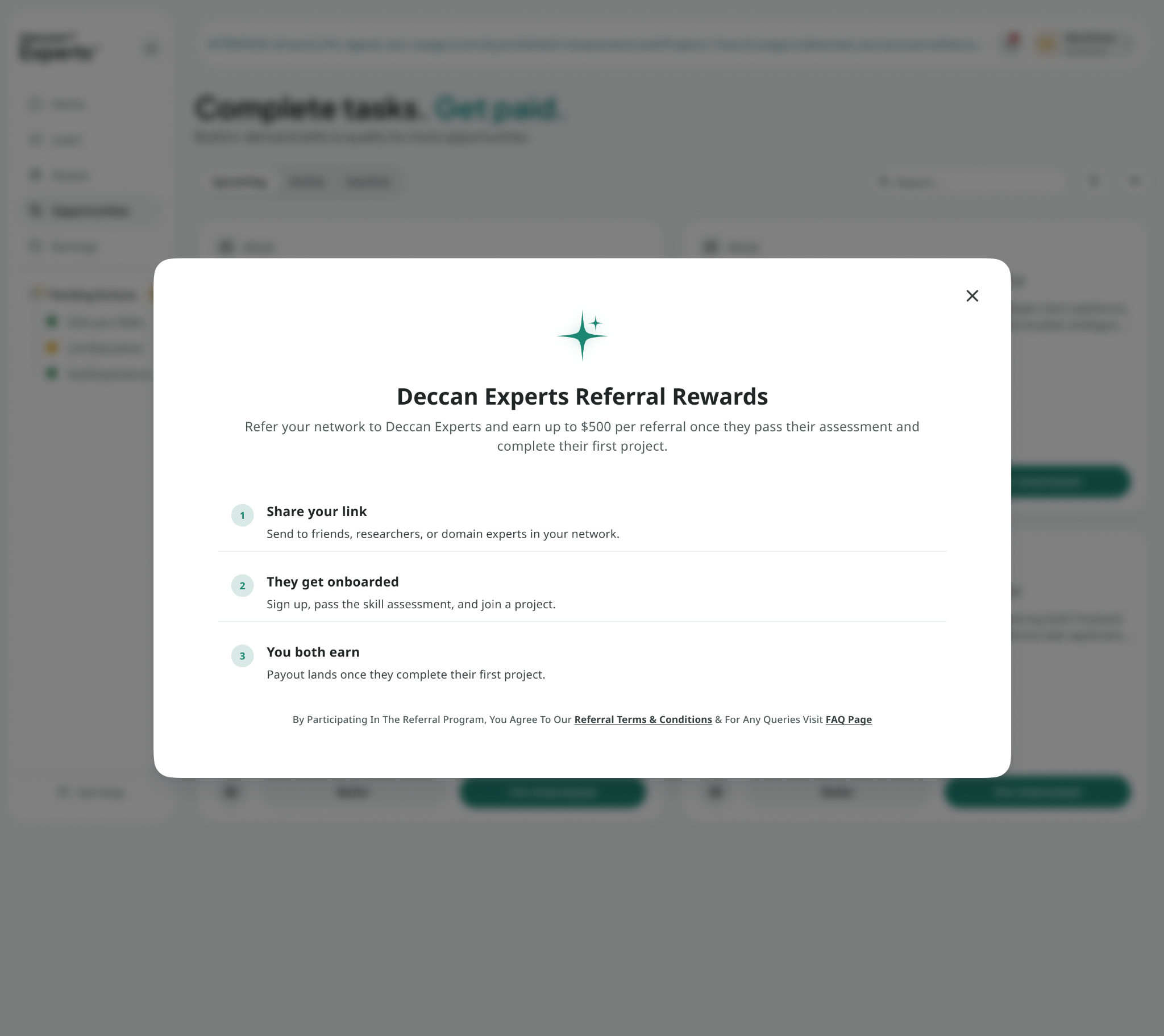
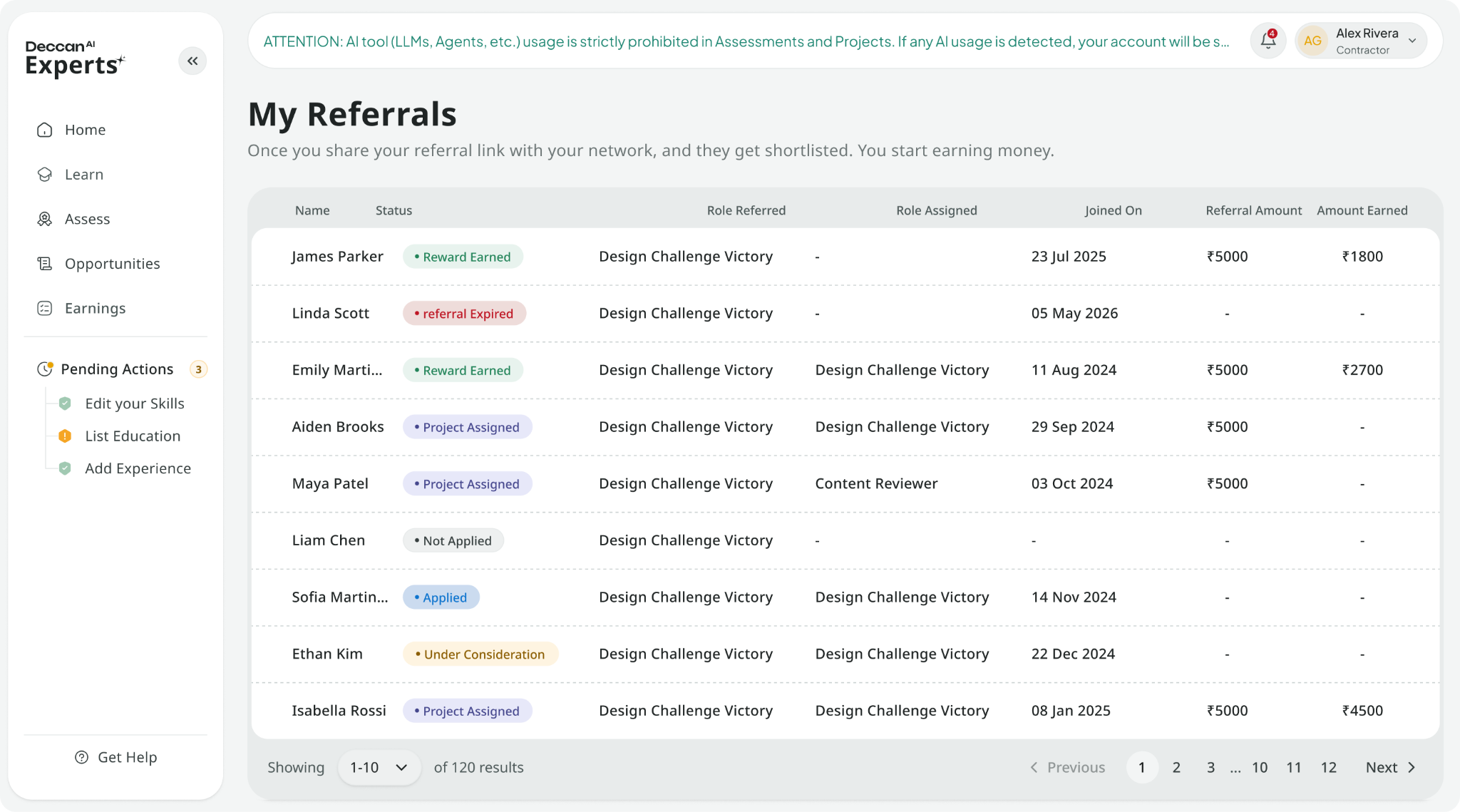
Refer experts you know for open roles and earn when they succeed. The Opportunities page has three tabs: Upcoming (roles open for referral), and Active / Inactive (all your roles and activity). Referrals are role-based each open role has its own reward and its own shareable link. You earn once the person you referred completes their first project.
Why it matters
It pays for fit, not clicks you earn when a referral completes their first project, so referring people genuinely suited to the role is what pays off. Referral rewards appear in your Earnings alongside project payments, on the same schedule.
Good to know
An active account in good standing is required to participate, and referrals must sign up through your role link attribution is set at account creation and can't be added afterward. Genuine referrals only self-referrals, duplicate accounts, and incentivised sign-ups with no intention to work forfeit rewards. Each role has a referral cap and a 6-month time window; current reward, cap, and remaining slots are always shown on the role.
Getting help & raising tickets
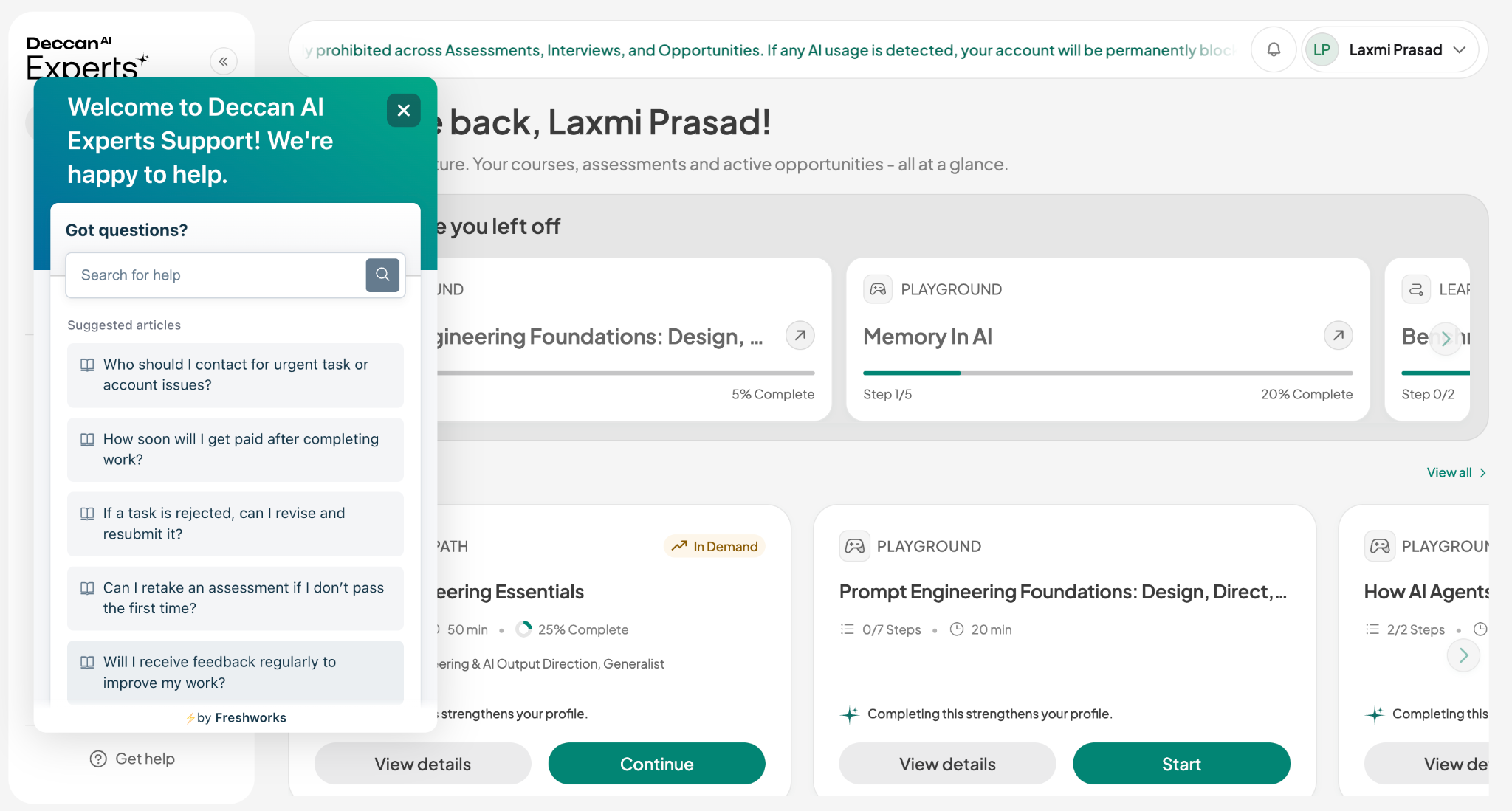
Support is available from every page select Get Help in the sidebar. Every request you've raised lives in one place, filterable by status, with a Questions and Contact Us button to raise a new one. For the fastest resolution: raise a ticket for anything account-specific verification, payments, bank details, tax forms, or a technical issue and keep each ticket to a single issue.
Why it matters
Specific tickets get fast answers, and the right channel matters questions about a specific project's tasks belong with that project's team; account, verification, and payment issues belong in support tickets.
Good to know
One issue per ticket, with specifics: what, where, when, and the right category. Stay in official channels Deccan Experts support will never ask for your verification codes or full bank credentials and don't open duplicates; if a ticket is taking longer than expected, follow up within it.
